If you are going to sell a product, you will definitely need testimonials to build trust for your product. Here, you will learn how to add a testimonial section to your Page. Here's how:
- Go to the 'Page' menu.
- Select the Page you want to use.
- Add the 'Testimonial' component.
- Three sections will appear where you can fill in the information you want.
Here are some settings you need to know:
- Show Image/Name: Option to display the image and name of each testimonial.
- View mode: Option to determine the style of each testimonial section.
- List for a vertical display.
- Grid for a horizontal display with the number of columns per row that you can set yourself.
- Text Alignment: Option to determine the position of the description text.
- Image Style: Option to determine the shape of the testimonial profile photo. You can choose Square for a square shape and Rounded for a circular shape.
- Image Position: Option to determine the position of the testimonial image in each section.
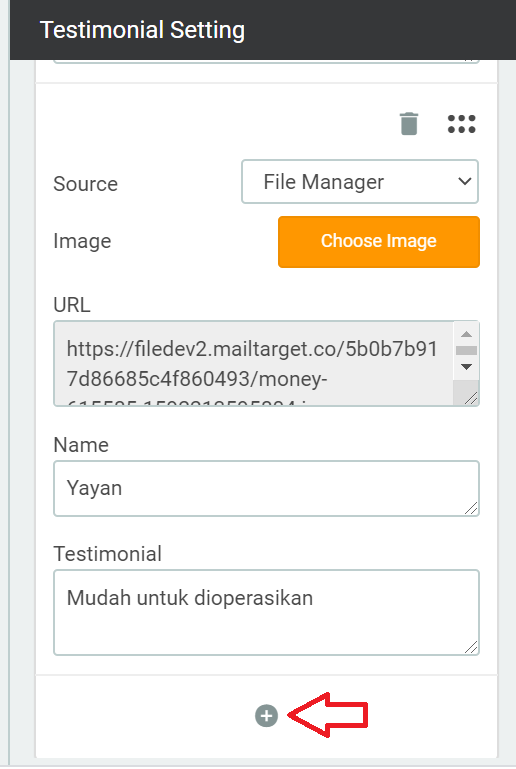
If you scroll further down, there will be a panel titled 'Testimonials'. Here you can add sections for testimonials. You can change the name, description, and profile photo of the testimonial. You can add more testimonial sections by clicking the + button as shown below: