
In this article, you will learn how to invite your partners to join your Mailtarget account. Before you begin, it's important to know that you can only invite your colleagues who have never registered as an Mailtarget account. If your partner already has an Mailtarget account and you want to invite him, unfortunately your colleague needs to create another email account so you can invite him to your Mailtarget account.
Here's how to invite your partners to your Mailtarget account:
- Enter the 'Team Management' menu.
- Click the 'Invite Member' button.
- Then select the Role you want. Here are the 3 roles that can be chosen and what can be done from each role:
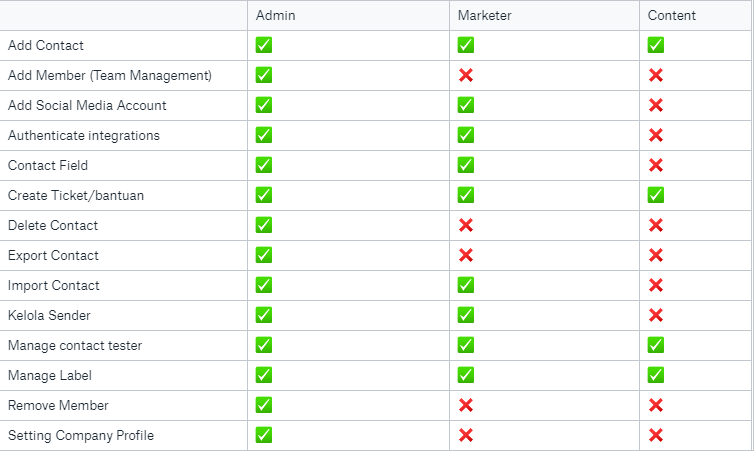
Please Note: Only accounts that have the role ** Admin ** can access the Billing menu.
- After you have chosen the role, click the 'Invite' button.
- Currently your partner's account is already on the list, but cannot be used because the account status is still 'Waiting'. So you need to make your partner's account status to 'Active'.
- Now check your partner's email inbox, to validate the email. If your partner has not yet received a validation email, click the action button. Then click the 'Resend' button to resend the validation email.
- If you have received a validation email, the next step is to follow the instructions.
- When finished, your partner will be asked to re-login using the email that you invited, and the password that your partner has created.
- If the login is successful, then your partner account has been successfully added to your Mailtarget account and the account status is 'Active'.