
In this article, you will learn how to integrate the Mailtarget Page feature with Squarespace. There are 2 types of integration here, namely by Embed (users can determine where the page will appear) and Pop-Up (users can display pop-ups on their website).
Integration Page Mailtarget
- First, create a page and then publish it.
- On the list page, click the 'share' action.
- Select Embed, and there is a script to embed the page.
- Log in to Squarespace and click 'Template' on the header page.
- Choose a template according to your preference and click 'start here'.

- A modal 'Welcome to Your Site' will appear. Fill in the 'site title' then click the 'continue' button.
- You will be on the second step modal 'Edit Pages' and the third step 'Create Pages', click 'next'.
- In the final step 'Style Pages', click the 'get started' button.
- To start editing, click 'edit'.

- On the edit page, click the 'plus' icon to add a section as a place for the template to be embedded.

- In the section modal, select 'Add Blank +'.

- The result will be like this.

- In the corner of the 'text box', there is a 'balloon' icon if hovered over with the cursor. Click one 'balloon', and a modal will appear to add a component. Choose 'embed'.

- In the embed modal, click the '</>' sign.

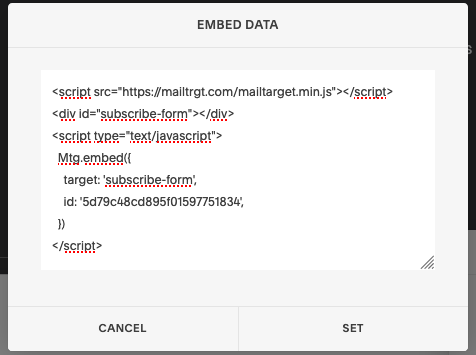
- Copy all the embed scripts in the 'share' modal in the Mailtarget app, then paste it in the 'embed data' modal. After pasting, click 'set' then 'apply'.

- To know if the embed was successful or not, click the 'preview in safe mode' button.

- If the embed is successful, the result will appear.

- Adjust the layout; components that are not needed can be deleted.
- If you are done, don't forget to save by clicking 'save' then 'back'.

- To see the result in mobile or desktop preview, click the icon in the top right corner.

- And here is the result.

