
In this article, you will learn how to integrate the Mailtarget Page feature with Wix. There are 2 types of integration here, namely by Embed (users can determine where the page will appear) and Pop-Up (users can display pop-ups on their website).
Integration Page Mailtarget (Embed)
- First, create a Page or select the Page you want to use.
- On the list page, click the 'share' action.
- Select Embed, there is a script to embed the page.
- Now switch to your Wix account. Log in to Wix and select 'Edit Site'.
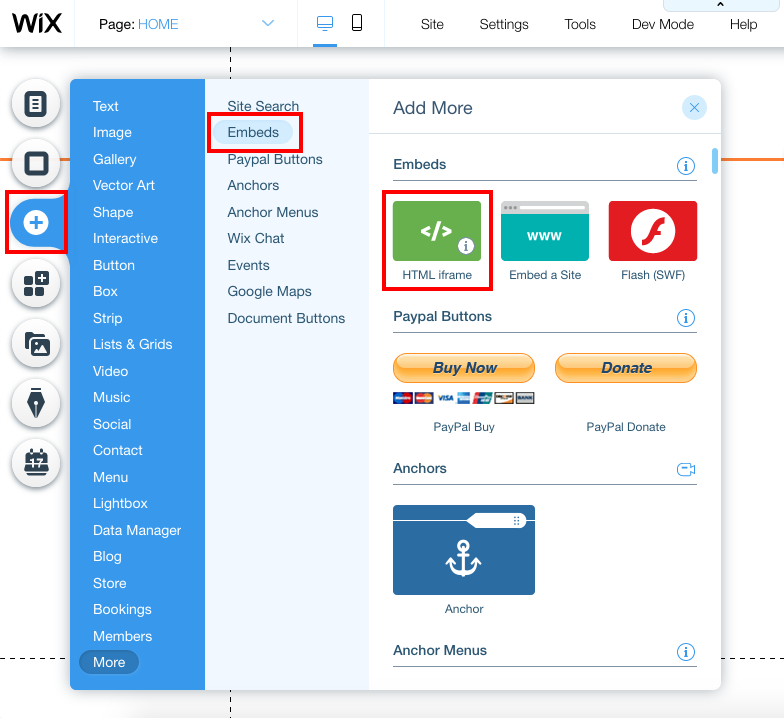
- On the editor page, click the 'Add' icon on the left sidebar, then select 'embeds'. On the 'embeds' option, click 'HTML iframe'.
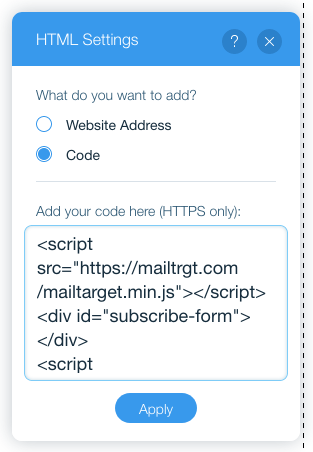
- A small modal will appear, then click 'enter code' then select 'code'.
- Here you will start entering the embed script that is on your Page. Go back to the Mailtarget app then copy all the scripts on the 'Share' button.
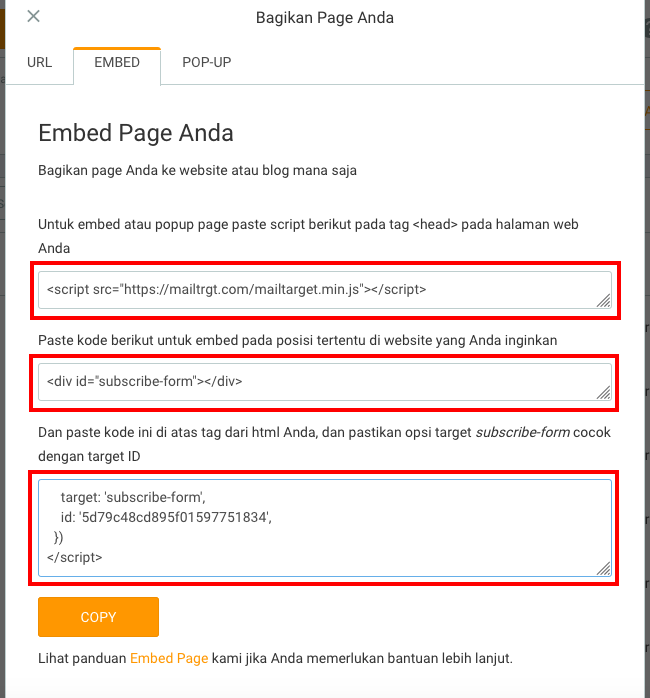
Please note: After you paste the embed script from your Mailtarget account, insert < head > at the beginning and </ head> at the end (without spaces). So the script display will be as follows:
< head>
Fill with embed script
</ head>
Head script without spaces.
- Paste the three scripts in the 'HTML setting' then click 'apply'.
 .
. - If successful, the result will appear, adjust the position as desired by dragging the embed component.

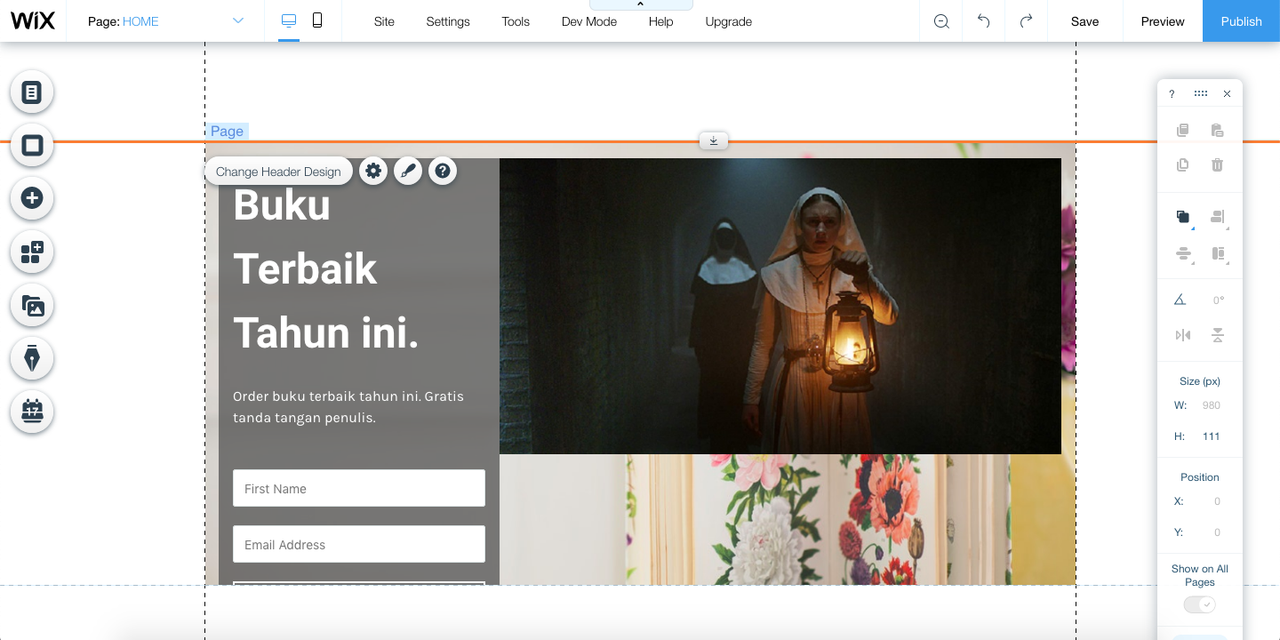
- Design the header, footer, and background as needed.
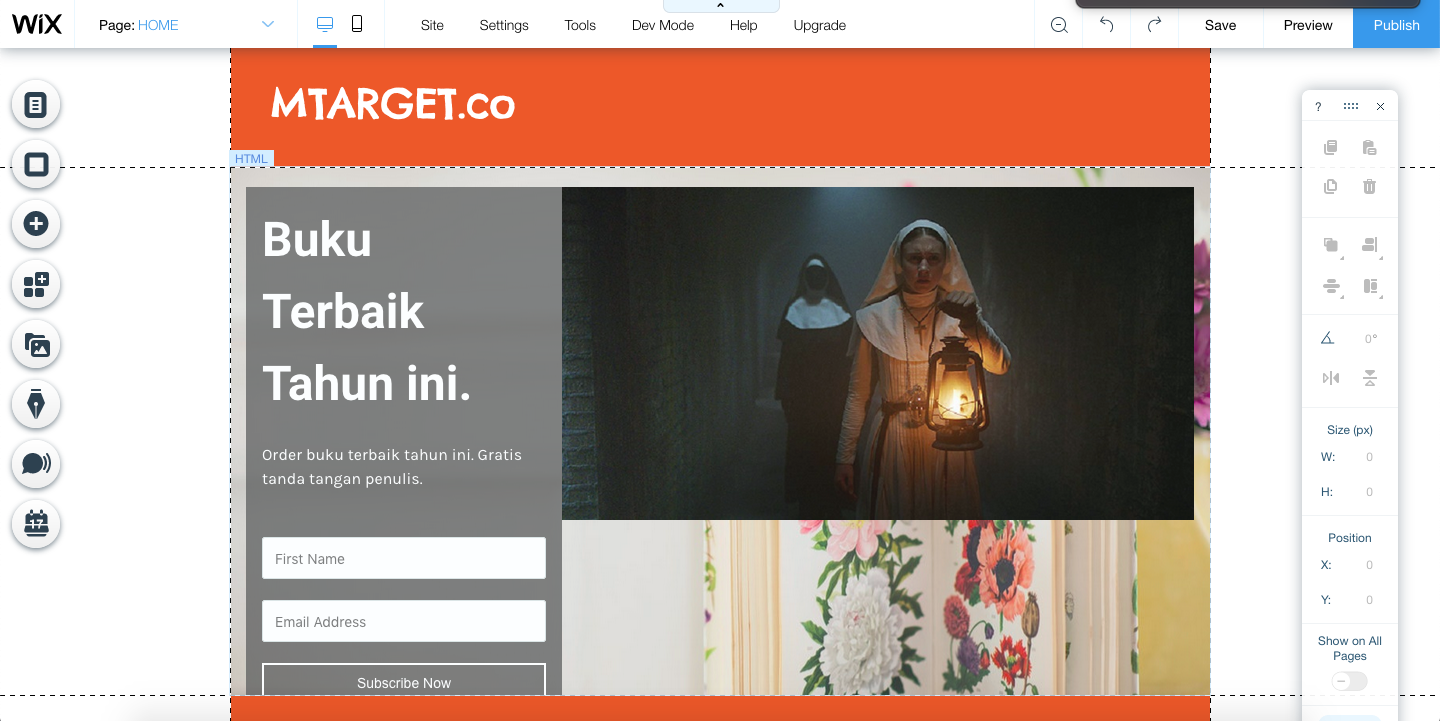
- If you are done, click 'save' then 'preview' to see the results.
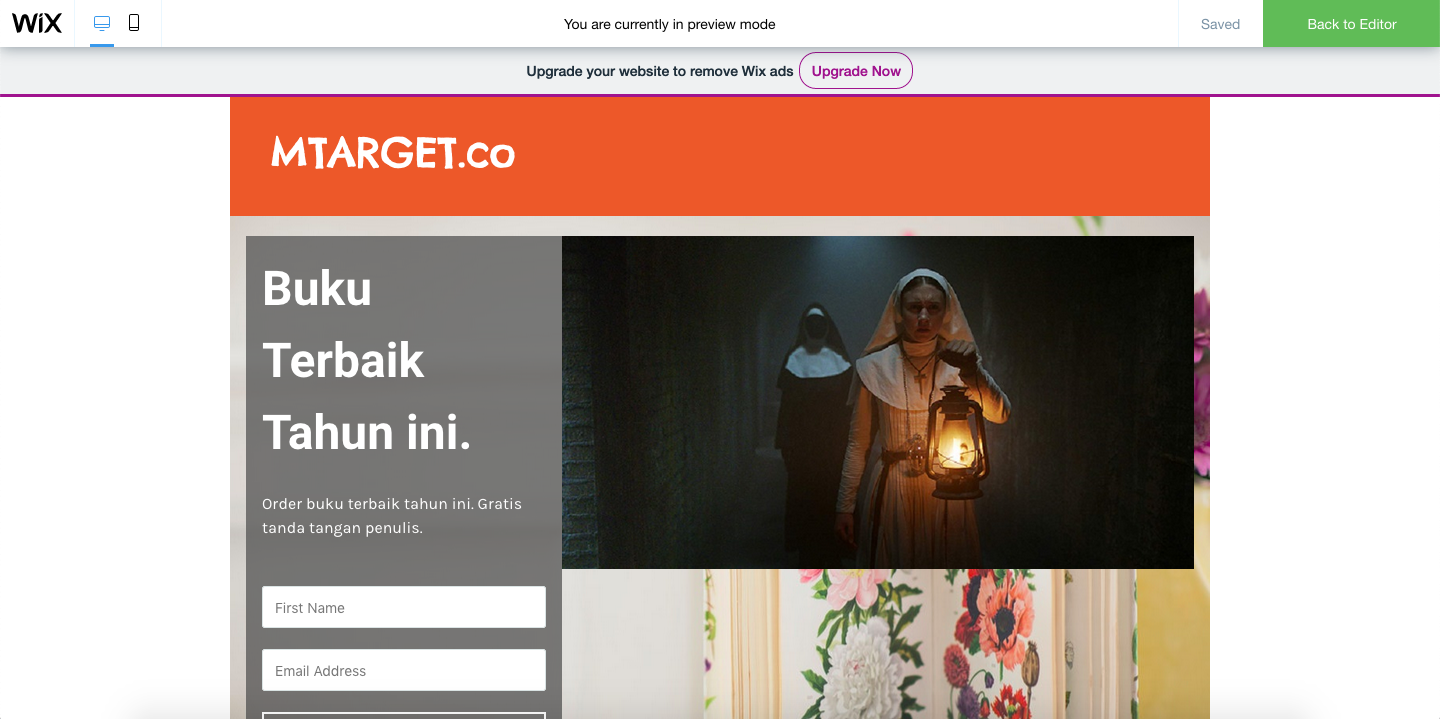
- Click 'back to editor', the page is ready to publish, click 'publish'.
Integrate Popup Mailtarget to Wix
Integration Page Mailtarget (Pop-Up)
- To add a pop-up integrated with Mailtarget, it's almost the same as embedding the page.
- Go to your Mailtarget account, on the 'share' button, click 'pop-up' then copy the entire script.

- Go back to the Wix editor page which you can access at 'Edit Site' from the Wix dashboard. Then select Embed and then 'HTML iFrame'.
- After that, a space will appear, then click 'edit code' then paste the script under the embed script. Then click 'update'.
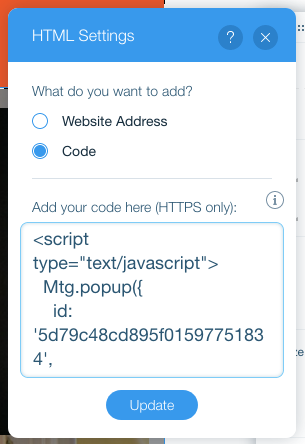
Please note: After you paste the embed script from your Mailtarget account, insert < head > at the beginning and </ head> at the end (without spaces). So the script display will be as follows:
< head>
Fill with embed script
</ head>
Head script without spaces.
- The result will be as follows.
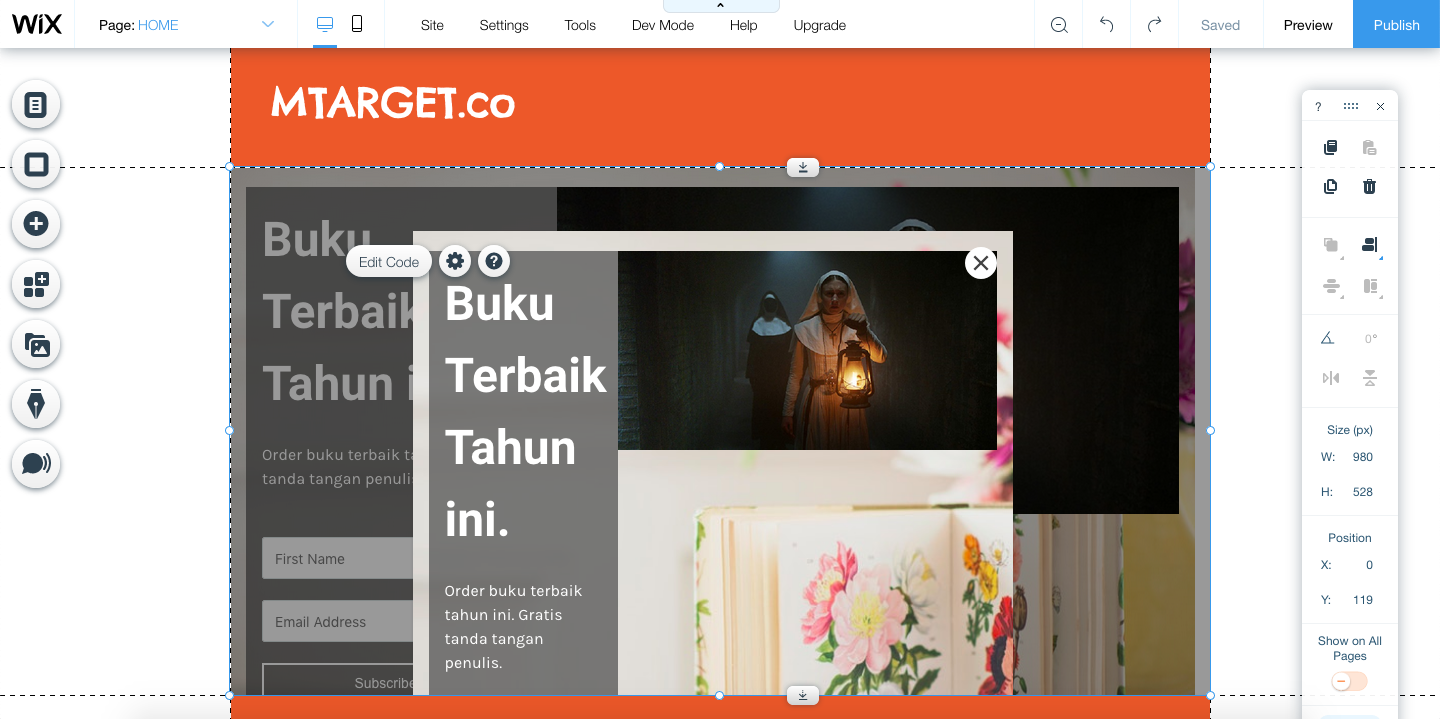
- Click the 'Preview' button to see the results. If you are sure, click 'save' to publish it.