
In this article, you will learn how to integrate Mailtarget Page features with Instapage. There are 2 types of integrations here, namely Embed (users can determine where the page will be displayed) and Pop-Up (users can display pop-ups on their website).
How to Embed Pages in Instapage
- First, create a page and then publish it.
- On the list page, click the 'share' action.
- Select Embed, there is a script to embed the page.
- Log in to Instapage, then on the Page 'Create Page'.
- Select 'Standard Page' then select 'Blank Page'.
- Give the desired name for the page.
- On the compose builder page, there is a Setting on the right side to set up the embed page.

- In the Settings, click '{} Javascript' and return to the Mailtarget app, keep it on the 'share' modal.


- Copy the script from the first column in the modal, then paste it into the 'header' section of the '{} Javascript' modal.


- Then copy the third script from the 'share' modal, and paste it into the 'footer' section of the '{} Javascript' modal.
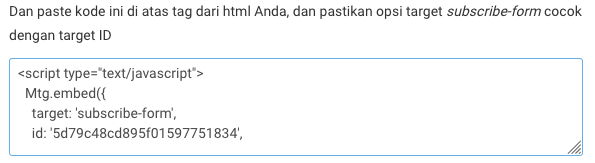
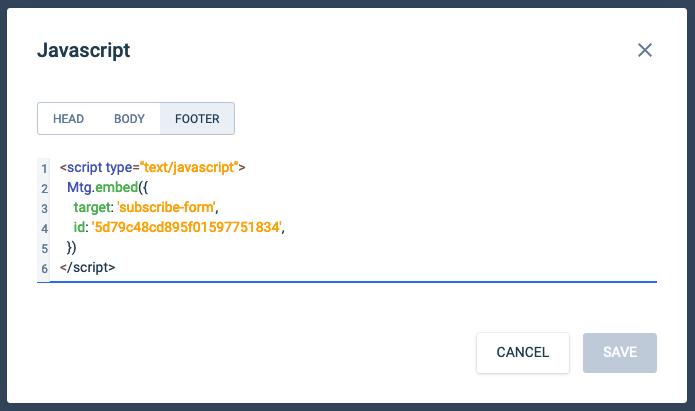
- Then, on the left sidebar of the compose builder, click 'html', then click 'Edit'.


- Then copy the second script from the 'share' modal, and paste it into the 'html' area, then click 'done' and 'full size content'.


- Arrange the position of the page you want to display.

- When done, click 'save' to save and click 'preview' to view, located at the top menu.

How to Create Pop-ups in Instapage
- Adding Mailtarget pop-ups to Instapage is the same as embedding a page.
- Once in the compose builder, click '{} Javascript' in the settings menu.

- Return to the 'share' page modal, select 'Pop-Up', and there are 2 scripts.

- Copy the first script, then paste it into the 'header' section of the javascript modal (if you have already performed the embed step, skip this step as the script is already there).

- Then copy the second script from the 'share' page modal, and paste it into the 'footer' section of the javascript modal, then click the 'save' button (if you have previously pasted the embed script, place the pop-up script below the embed script).

- When done, don't forget to 'save', and to see the result, click 'preview'.

- And here is the result.
