
Sending files to your audience through email campaigns can often be challenging, as attaching files to mass email campaigns can cause deliverability issues, like emails landing in spam folders. As a solution, you can use cloud media storage services such as Mailtarget Asset Manager, Dropbox or Google Drive to share files.
Steps to Send Files Using Mailtarget
Prepare a Shareable File Link
- Upload your file to a cloud service like Mailtarget Asset Manager, Google Drive, or Dropbox.
- Create a shareable link for the file.
Design Your Email
- Log in to the Mailtarget platform and select "Create Email."
- When in the email composer section, click the plus button to add a new element.
- Choose the "Button" option.
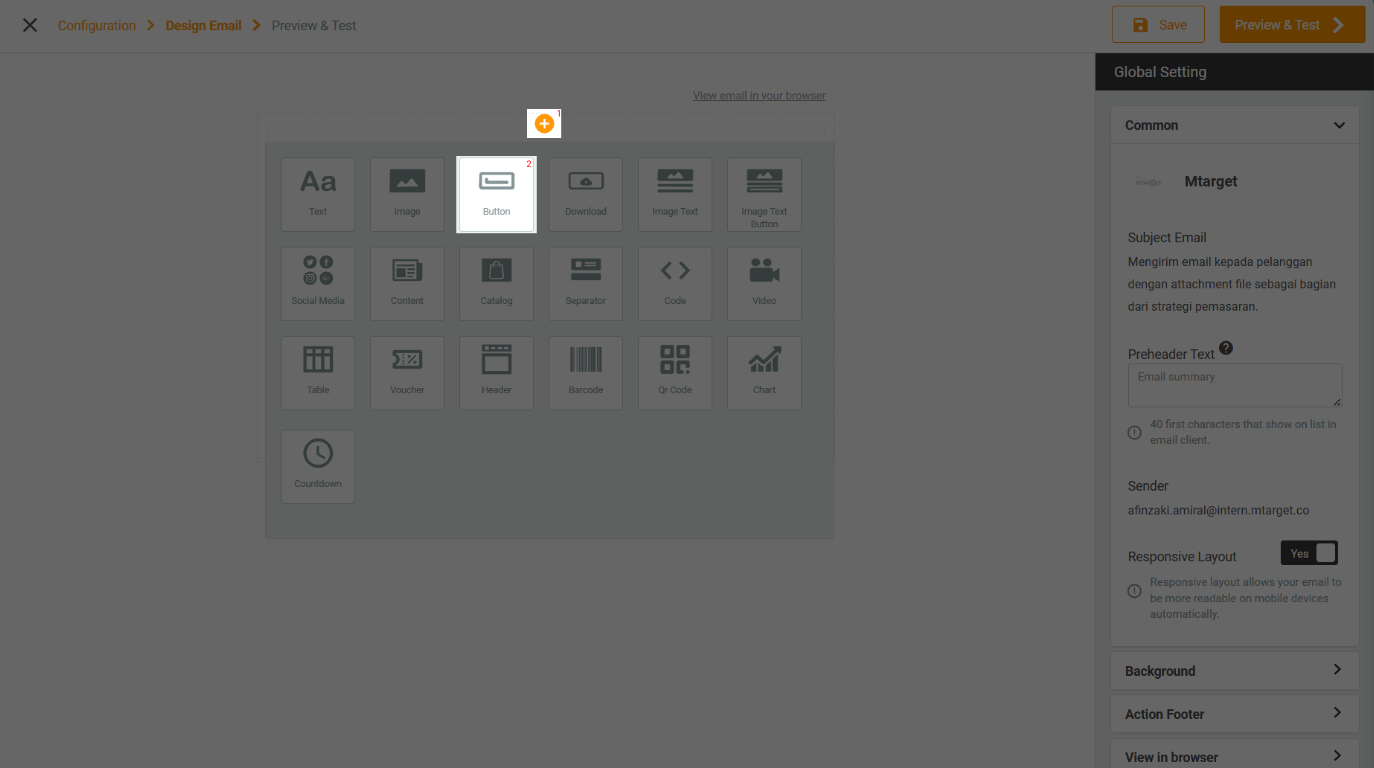
Add the Button to Your Email
- Enter the file link URL into the button settings.
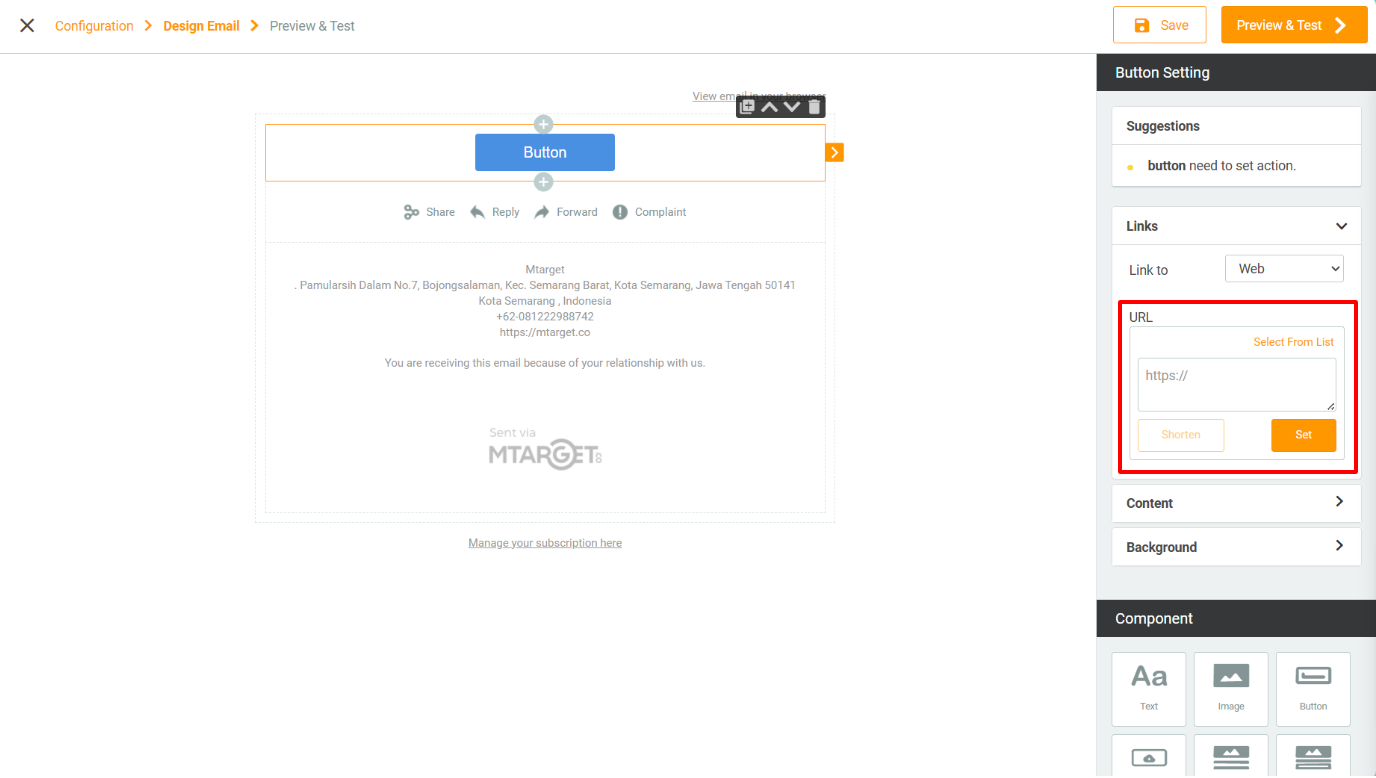
- Complete your email design.
Additional Tips
For a deeper understanding of email marketing components in Mailtarget, visit the documentation page at the Mailtarget Email Marketing Components.